Events
Your Events feed shows everything coming up at all your schools and centres, grouped into Today, Tomorrow, Later This Week, Next Week and so on. Events you've marked as favourites appear at the top.
New Zealand public holidays, including your region's anniversary day, appear in the feed too. They follow the region set in Profile & Settings.
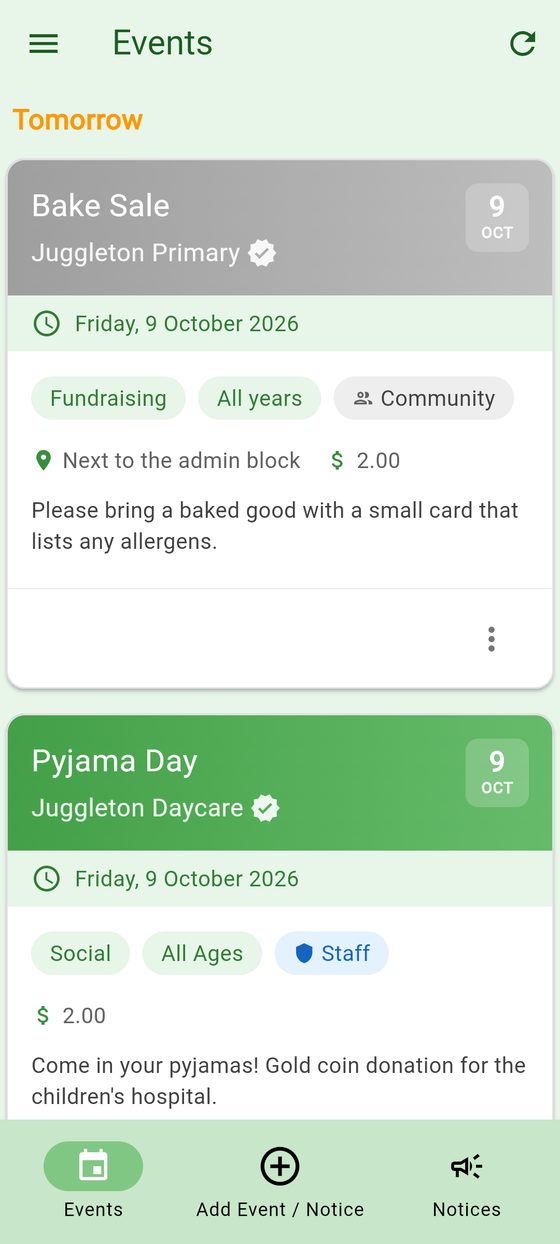
Reading an event
Each card shows the school or centre, the date and time, the event type, which year levels it's for, and the location, cost and description if there are any.
A label shows who posted it:
- Staff: posted by the school or centre. At Premium schools the card is green and its name has a verified badge.
- Community: posted by a parent or community member.
- You: you posted it.
Tap ⋮ on a card for more:
- Favorite: keep the event at the top of your feed.
- Add to Calendar (iPhone and Android apps): copy it into your phone's calendar.
- Report: tell us the event breaks the community guidelines.
Add an event
You can add events for schools and centres that allow it (see Choose your schools and centres).
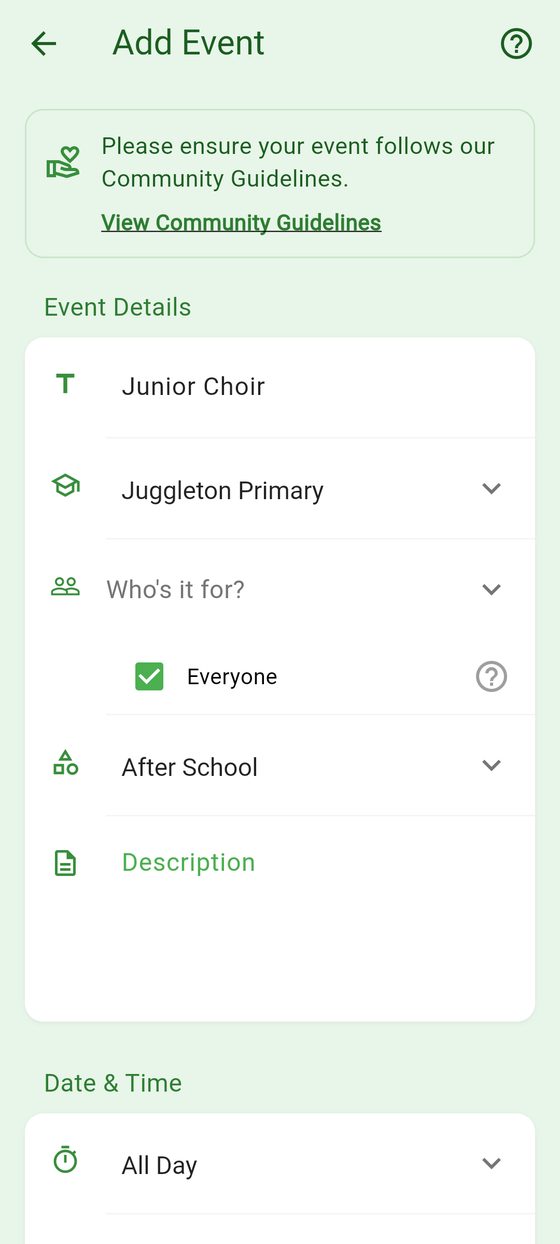
- Tap Add Event / Notice, then Event.
- Fill in the form, then tap Add Event.
Guidelines for posting events
Please keep events suitable for groups and not about one child: no private birthday parties or playdates. Posting inappropriate events can stop you posting in future. See the community guidelines.
Event details
- Title: what's happening, e.g. Bake Sale.
- School or centre: which one it's for.
- Who's it for?: tick Everyone if it's for everyone (e.g. the school gala), or choose the year levels or groups it's for. Each school shows the year levels it has. Early learning centres have one group, shown as All Ages (or the name the centre gives it).
- Event Type: e.g. Fundraising, Sports, After School.
- Description: anything else people need to know. You can include a website address or phone number. Long descriptions show Read More in the feed.
Date & Time
Choose a Duration, then the date (and times):
| Duration | Example |
|---|---|
| Part of a Day | 9:00am until 10:30am |
| All Day | Friday 5 September |
| Over Multiple Days | 15 September until 18 September |
| Custom | 9:00am 15 September until 3:00pm 20 September |
Additional Info
- Location: e.g. School Hall.
- Amount: any cost, e.g. 2.00.
Links & Documents
Attach links such as a map, permission slip or ticket page:
- Tap Add Link.
- Enter the address (URL) and, if you like, a Link Name.
- Tap Add.
Change or cancel an event
You can change events you posted.
- Change it: tap ⋮ → Edit, make your changes, then tap Update Event. If you change the date or time, everyone sees that it's been rescheduled, and their reminders move with it.
- Cancel or delete it: tap ⋮ → Delete. Choose Cancel Event to keep it in the feed marked as cancelled (you can add a reason, e.g. Weather conditions), or Delete Forever to remove it.