My children
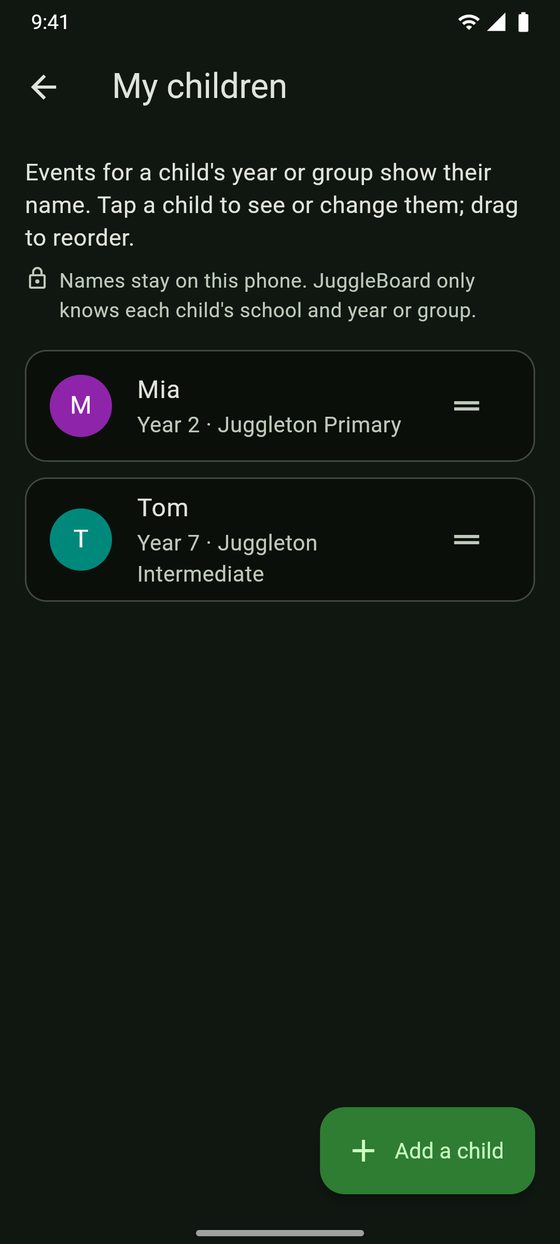
Tell JuggleBoard which school or centre each of your children is at, and their year or group. Events for their year or group then show their name, so you can see at a glance who each event is for, and you can show just one child's events.

Add a child
- Open the ☰ menu and tap My children.
- Tap Add a child.
- Choose their school or centre (if you belong to more than one).
- Choose their year, or their group at a centre (if the centre has named its groups, such as "Starfish").
- Type their first name or a nickname (up to 20 letters) if you like, and tap Add child. Leave it blank and we'll call them by their year or group ("Year 4").
Each child gets their own colour. You can add up to 10 children.
Change, reorder or remove a child
- Change. Tap a child to see their name, school or centre, and year or group. Change the name, or tap their year or group to choose another (the one they're in now is ticked), then tap Save. To move a child to another school or centre, remove them and add them again.
- Reorder. Drag the ≡ handle next to a child. The chips at the top of Events follow the same order, on all your phones.
- Remove. Tap the child, then Remove child.
Children at a school move up a year by themselves each January. Groups at a centre don't, so change them when your child moves rooms.
See your children's events

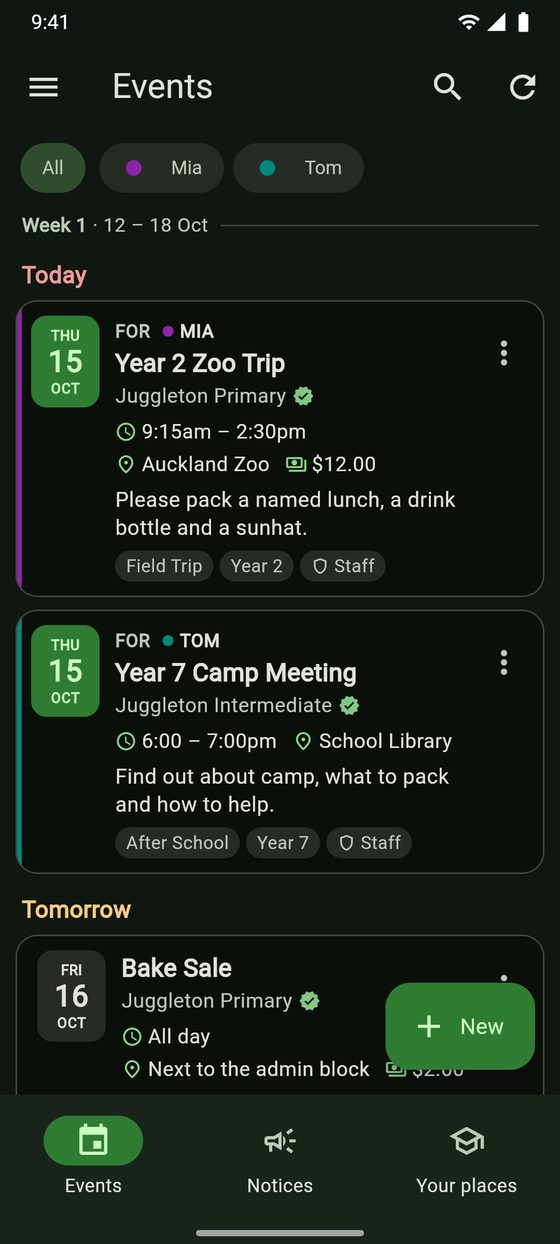
- Who it's for. An event for a child's year or group has a bar in their colour down its left edge and FOR and their name at the top. An event for two of your children shows both colours and both names; if the names don't fit, the rest show as +1, +2 and so on. Events for the whole school or centre don't show a name, because they're for everyone.
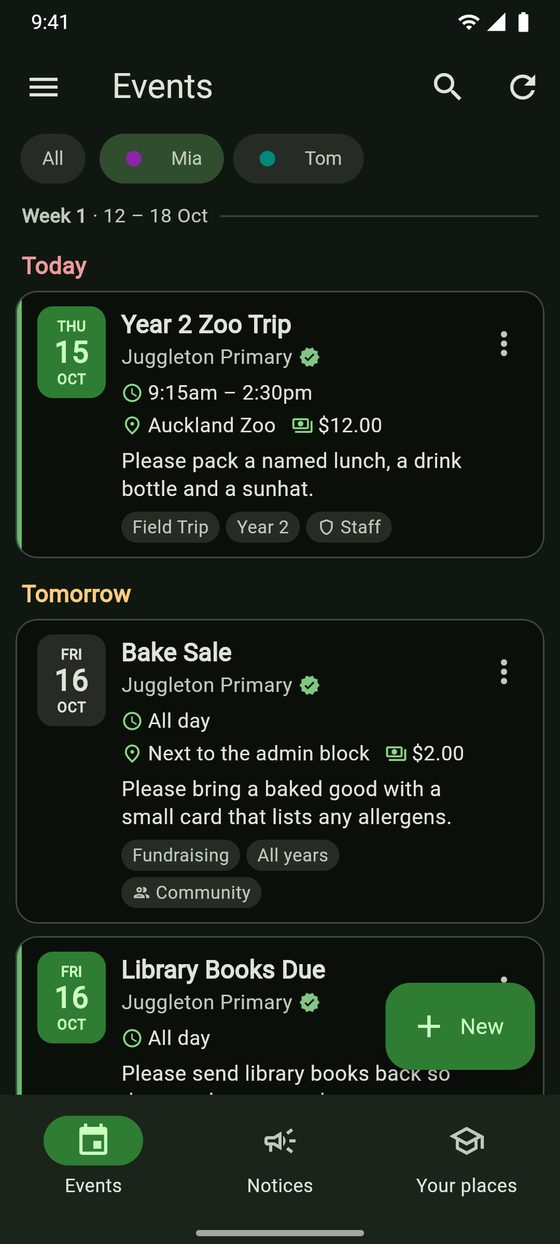
- One child's events. When you've added children, the top of Events shows All and a chip for each child. Tap a child to see their events, their school's whole-school events and public holidays. Names aren't shown on the cards then, since they're all for that child. Tap All to see everything again.
- Search. Searching a child's name finds the events for them.

Names only appear when the school or centre says who an event is for. If it doesn't, the event counts as for everyone.
Children's names stay on your phone
To keep your children private, their names never reach JuggleBoard. We only know each child's school or centre and their year or group, and only you can see those.
The names are kept on the phone (or browser) you typed them on. On a new phone, JuggleBoard asks you for them again; until then, your children are called by their year or group.